
Valheim DirectX Shader Cache Clear Guide: Fix Stuttering and FPS Drops in 2026
I’ve put a genuinely embarrassing number of hours into Valheim since it hit Early Access, and if there’s one thing that’s tested my patience more than a two-star troll wrecking my palisade, it’s the stuttering. You know the kind — everything’s buttery smooth while you’re standing still admiring your build, and then the second you spin the camera or sprint into a fresh chunk of the Mistlands, the game turns into a slideshow. I chased this problem for way longer than I’d like to admit before realizing the actual culprit most of the time: a bloated, outdated shader cache.
This isn’t some obscure fix buried in a forum thread from 2021 either — it’s still one of the most reliable things you can do in 2026, especially after a driver update or a big Valheim patch. So here’s my full rundown, based on what’s actually worked for me (and a few Discord friends I’ve talked into trying it) rather than just copy-pasting generic troubleshooting steps.
Why Does Valheim Stutter in the First Place?
Quick refresher, because understanding why this happens makes the fix make a lot more sense. Your GPU doesn’t render lighting, shadows, and materials from scratch every frame — that would be insanely slow. Instead, Windows, Steam, and your graphics drivers pre-compile little programs called shaders and store them on disk so they can be reused instantly.
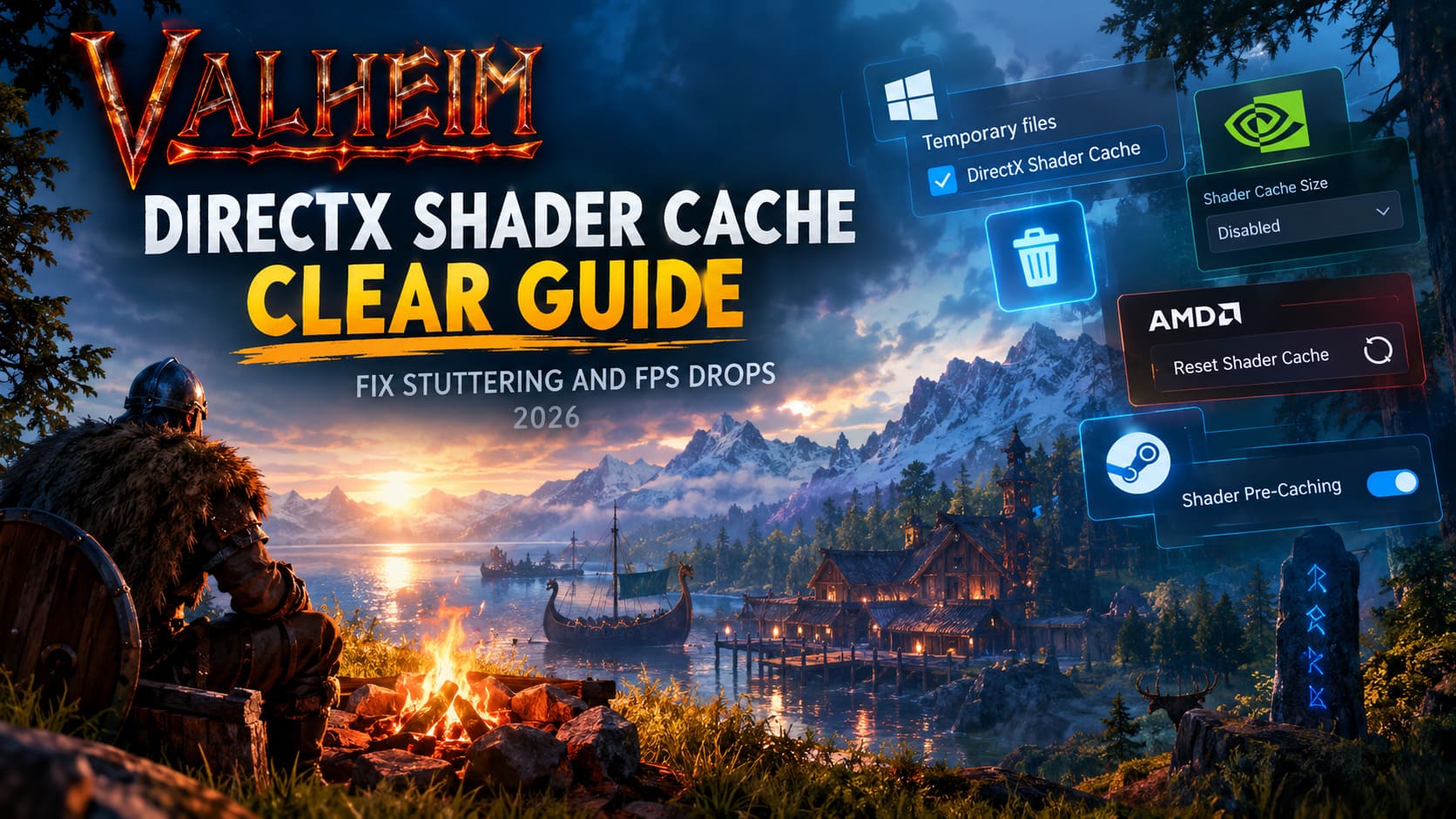
The problem is that this cache doesn’t always age gracefully. Update your NVIDIA or AMD drivers, or let Valheim push a patch, and a chunk of those cached shaders becomes stale or mismatched. Instead of cleanly replacing them, your system sometimes ends up recompiling shaders while you’re playing, which is exactly the kind of CPU/GPU overtime that causes those nasty micro-stutters.
Common signs your shader cache is the actual problem:
- Smooth when idle, choppy the instant you turn the camera or enter a new area
- Performance tanked right after a GPU driver update or Valheim patch
- Textures and terrain pop in black or low-res before snapping into place
- The “Preparing Shaders” loading screen hangs or loops
- Stutters spike when a friend joins your server or a big magic effect goes off
If two or three of those sound familiar, keep reading — this is very likely your fix.
A Quick Word on Valheim’s Graphics APIs
Which rendering API you’ve picked in Steam actually changes where your shader cache lives, so it’s worth knowing before you go hunting for files.
| API | What It’s Good For | Where Cache Lives |
|---|---|---|
| DirectX 11 | Most stable, best for older rigs | Windows DirectX Shader Cache |
| DirectX 12 | Better multi-threaded CPU use, rougher initial stutter | GPU driver folders + Windows temp |
| Vulkan | Often best on AMD and mid-range PCs | Steam Shader Pre-Caching + driver-specific cache |
Honestly, unless you’ve got a strong reason to stick with one API, I’d just clear everything across the board. It takes ten extra minutes and saves you from guessing wrong.
Method 1: Clear the Windows DirectX Shader Cache
This is the safest starting point and where I always tell people to begin.
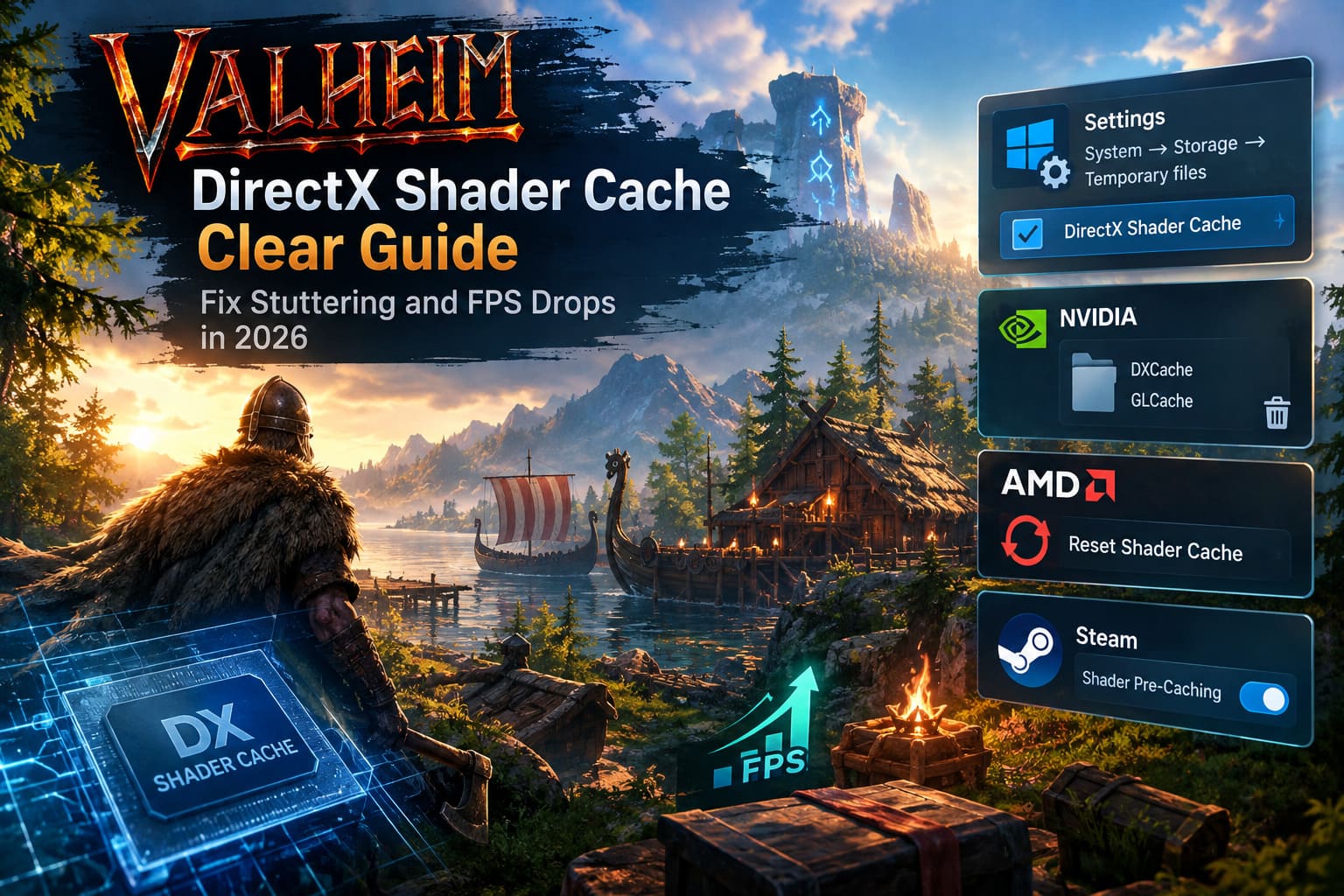
Using Windows Settings:
- Fully close Valheim, Steam, and any overlays (Discord, GeForce Experience, whatever)
- Hit
Win + Ito open Settings - Go to System → Storage → Temporary files
- Let it scan, then check the box for DirectX Shader Cache only — don’t get trigger-happy and nuke your Downloads folder by accident
- Click Remove files, then confirm
Using Disk Cleanup (the old-school way):
- Search “Disk Cleanup” in the Start menu and open it
- Pick your OS drive (usually C:)
- Find DirectX Shader Cache in the list, check it, leave the rest alone
- Click OK, then Delete Files
Either method works fine — I tend to use the Settings app just because it feels slightly less like I’m going to accidentally delete something important.
Method 2: NVIDIA’s Hidden DXCache and GLCache Folders
This is the one people skip, and it’s honestly the one that made the biggest difference for me on my RTX card. NVIDIA keeps its own hardware-level cache that Windows’ cleanup tools don’t touch.
Step 1 — Disable the cache temporarily:
- Right-click your desktop → NVIDIA Control Panel
- 3D Settings → Manage 3D Settings → Global Settings
- Find Shader Cache Size, set it to Disabled
- Apply, then restart your PC (this matters — Windows needs to release its lock on the files)
Step 2 — Manually delete the folders:
Win + R, type%localappdata%, hit Enter- Open the NVIDIA folder
- Clear out everything inside DXCache (this is the one Valheim actually uses) and GLCache
- If a file refuses to delete because it’s “in use,” just skip it — don’t force it
- Also check
%USERPROFILE%\AppData\LocalLow\NVIDIA\PerDriverVersion\for leftover DXCache folders
Step 3 — Turn it back on:
- Back into NVIDIA Control Panel → Shader Cache Size
- Set it to Driver Default, or bump it up to 10GB if you’ve got the storage — I run mine at a higher cap since Valheim’s a long-session game and I’d rather not have shaders getting evicted mid-playthrough
- Apply and reboot
Method 3: AMD Radeon’s One-Click Reset
If you’re on Team Red, honestly, you’ve got it easier here — AMD built a proper button for this.
- Open AMD Software: Adrenalin Edition
- Gear icon → Gaming → Graphics → Advanced
- Find Reset Shader Cache, click Perform Reset, confirm
- Restart your PC
No folder-hunting required. It’s genuinely one of the few “just works” features I’ve come across in this whole process.
Method 4: Reset Steam’s Shader Pre-Caching
People forget Steam does its own thing on top of everything else. It pre-downloads shader packages matched to your specific GPU, and those can get corrupted too.
- Open Steam → Settings → Downloads
- Find Shader Pre-Caching
- Toggle it off, wait a moment, then toggle it back on
This forces Steam to drop the old package and queue a fresh one. It’s a small step, but I’ve seen it clear up weird stutter patterns that survived the other three methods.
Don’t Panic During the First Session After Clearing
This part trips people up every time, so let me save you the “oh no, I made it worse” panic. The first time you launch Valheim after clearing everything, performance will actually feel rougher for a bit. That’s expected — your system has to recompile every shader from a blank slate, so CPU usage can spike and frame rates might jump around for the first five to ten minutes.
What I do: spawn into a quiet Meadows area, not straight into a boss fight or a busy base. Slowly turn the camera in a full circle to let everything load in, wander through a biome or two, and let the game settle. Once that initial recompile finishes and saves to disk, the stutter is usually just… gone. Noticeably smoother than before, in my experience.
A Few Extra Tweaks That Pair Well With This
If you’ve cleared everything and you’re still getting the occasional hiccup, a couple of community-tested extras have helped me:
- Launch option tweak: Right-click Valheim in Steam → Properties → Launch Options, and add
-window-mode exclusive -screen-fullscreen. It helps Windows prioritize Valheim’s rendering over background processes. - Get off the HDD if you’re still on one: Valheim streams a lot of world data as you explore, and a mechanical drive can cause bottlenecks that feel exactly like shader stutter but aren’t. Moving to an SSD is a bigger fix than people expect.
- Watch your terraforming: Massive terrain edits are tracked individually by the engine, and a heavily modified base can tax your CPU in ways no cache clear will solve. If your base is a small mountain range at this point, that’s probably part of your problem too.
Valheim Mass Harvesting Tricks: The Ultimate Farming Guide for 2026
Final Thoughts
None of this is glamorous troubleshooting — it’s basically digital housekeeping. But shader cache buildup is genuinely one of the most common (and most overlooked) causes of stuttering in a game like Valheim, where you’re constantly loading new biomes, structures, and effects. Run through these four methods after your next big driver update or Valheim patch, give the game that rough first session to rebuild its cache, and odds are you’ll be back to smooth Viking sailing without needing to touch a single graphics setting.


