How to Fix Active Matter 2026 VRAM Overflow and Out of Memory Crashes on NVIDIA GTX 1080
I’ll be straight with you: the official minimum specs for Active Matter (2026) are a lie, or at least a very optimistic fairy tale. Matter Team and Gaijin say a GTX 1050 Ti or RX 470 can run it. Sure, if ‘run’ means a slideshow that ends with a desktop crash.
I’ve sunk a stupid number of hours into this extraction shooter. The fractured multiverse, the gravity-bending quantum anomalies and the tense PvPvE raids are all fantastic. But if you’re on a GTX 1080, one of the best GPUs ever made, you’ve probably met this charming message already: ‘Out of Video Memory trying to allocate a texture.’ Sometimes it’s a generic DX12 VRAM overflow instead. Either way, you’re staring at your desktop with a half-looted backpack gone forever. Painful.
The worst part is that dropping everything to Low doesn’t fix it. So here’s what’s actually going on, and how to beat it.
Active Matter Best Settings for Competitive PvP Visibility: Complete Graphics & Performance Optimization Guide
Why Your 8 GB Card Is Choking
The GTX 1080 has 8 GB of GDDR5X. Back in the day that was king-tier. Now we have games with high-fidelity assets, detailed military gear, huge industrial maps and anomaly effects that constantly shove data into your VRAM. Two things are killing you.
1. Greedy shader and texture caching. Active Matter leans hard on DirectX 12, which hands the engine low-level control and also makes it expect a fat pool of VRAM for pre-caching. Even on the ‘Low’ preset, the streaming pool can swallow your whole 8 GB buffer at 1080p or 1440p. Then the engine goes hunting for memory that doesn’t exist, and you crash.
2. A VRAM leak. Players on Steam and Reddit keep reporting the same thing: the client doesn’t flush VRAM between raids or when you bounce back to the Shelter base screen. Your usage creeps from about 4.5 GB to 7.8 GB over a session. Then one busy firefight triggers an allocation spike, you cross 8 GB, and the game dies on the spot.
The 1080 has no ray tracing cores and no DLSS frame generation to bail it out. It handles raw asset allocation head-on, so it has almost no breathing room for engine quirks.
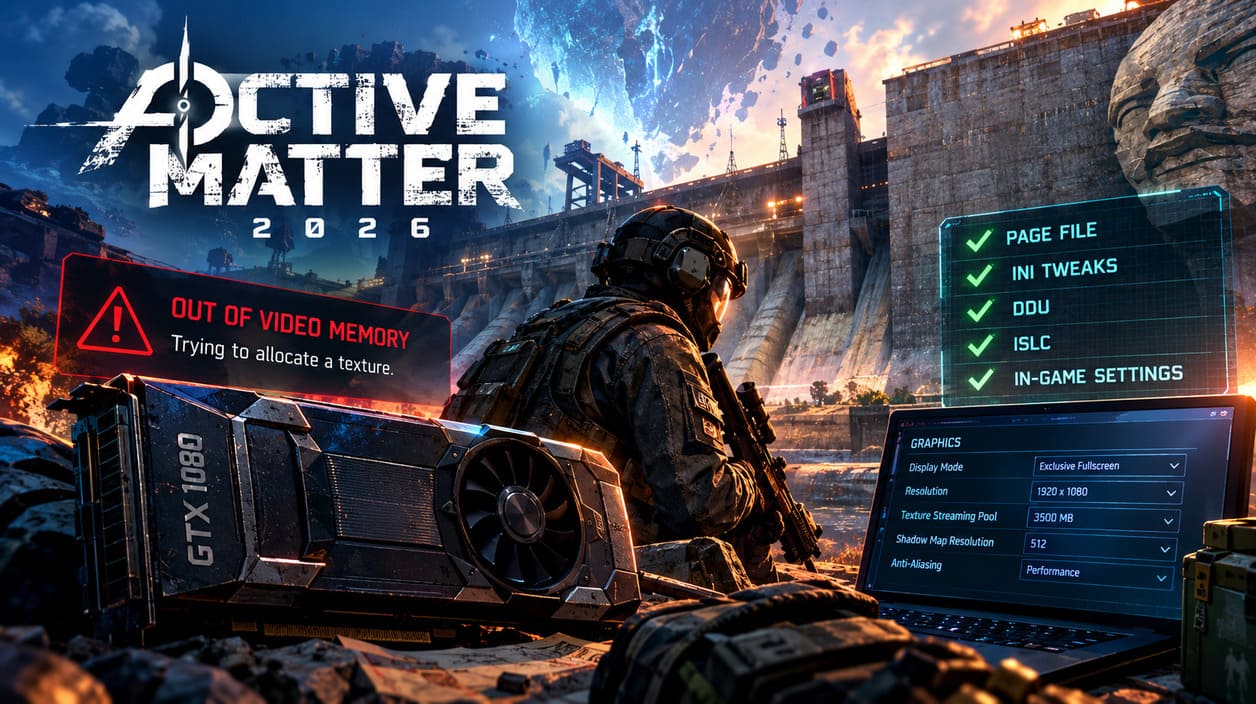
The Fixes (Do Them in Order)
You need a layered approach here. We’re going to throttle the game’s caching and give Windows an emergency spillway for the overflow.
Step 1: Build a Proper Page File (Don’t Skip This)
When VRAM runs dry, DX12 dumps temporary asset tables into system RAM. If RAM is full, or your page file is tiny or sitting on a slow HDD, the engine panics and you crash. A big manual page file on an SSD is the most reliable workaround.
- Press the Windows key, type Advanced System Settings and hit Enter.
- On the Advanced tab, click Settings under Performance.
- Go to the Advanced tab again and click Change under Virtual Memory.
- Untick ‘Automatically manage paging file size for all drives.’
- Select the drive where Active Matter is installed. The game needs an SSD, so never put the page file on a mechanical HDD. The read/write speeds will wreck you with horrible stutter.
- Pick Custom Size.
- Set Initial Size to 16384 MB (16 GB) and Maximum Size to 24576 MB (24 GB). If you only have 8 GB of system RAM, push the maximum up to 32768 MB (32 GB).
- Hit Set, then OK.
- Restart your PC so Windows actually allocates the block.
Step 2: Edit the Config Files to Cap Texture Streaming
The in-game ‘Low’ setting doesn’t touch some hidden values, like volumetric fog and ambient occlusion. We’ll fix that by hand.
- Press Win + R, type
%LOCALAPPDATA%and hit OK. - Find the game’s folder, usually
ActiveMatterorMatterTeam/ActiveMatter. - Go to
Saved\Config\WindowsNoEditor(orWindowsPrivateSetting). - Open
Scalability.iniorGameUserSettings.iniin Notepad. - If the file is empty, or under the existing rendering sections, add this:
[TextureQuality@0]
r.Streaming.PoolSize=3500
r.Streaming.LimitPoolSizeToVRAM=1

[ShadowQuality@0]
r.Shadow.MaxResolution=512
r.Shadow.DistanceScale=0.6

[ViewDistanceQuality@0]
r.ViewDistanceScale=0.75

[PostProcessQuality@0]
r.AmbientOcclusionLevels=0
r.VolumetricFog=0
A pool size between 3000 and 3500 means the engine reserves at most 3.5 GB of your 8 GB for dynamic textures. The other 4.5 GB stays free for geometry, UI and system overhead. That headroom is what stops the crash.
- Save and close. Then right-click the file, open Properties, tick Read-only and hit Apply. Otherwise the launcher will quietly reset your edits the moment you log into a server.
Step 3: Nuke Your Drivers with DDU
Old shader caches and leftover registry keys can make the game misjudge how much VRAM you have. A clean install wipes that out.
- Grab the latest NVIDIA Game Ready Driver for the GTX 1080 from NVIDIA’s official site.
- Download Display Driver Uninstaller (DDU).
- Unplug your internet so Windows Update doesn’t shove a generic driver back in.
- Boot into Safe Mode.
- Run DDU, pick GPU, choose NVIDIA, and click Clean and restart.
- Back in normal Windows, run the NVIDIA installer, choose Custom Installation and tick Perform a clean installation.
- Reconnect the internet, restart once more, then launch the game.
Step 4: Run ISLC to Fight the Leak
The leak is the real villain in long sessions, so automate the cleanup.
- Download Intelligent Standby List Cleaner (ISLC), made by the same dev as DDU.
- Set ‘The list size is at least’ to 1024 MB.
- Set ‘Free memory is lower than’ to half your total RAM. With 16 GB, that’s 8192 MB.
- Tick Start ISLC minimized and Launch ISLC on user logon.
- Click Start. It sits in your tray and keeps flushing clogged asset pools before they turn into a VRAM overflow.
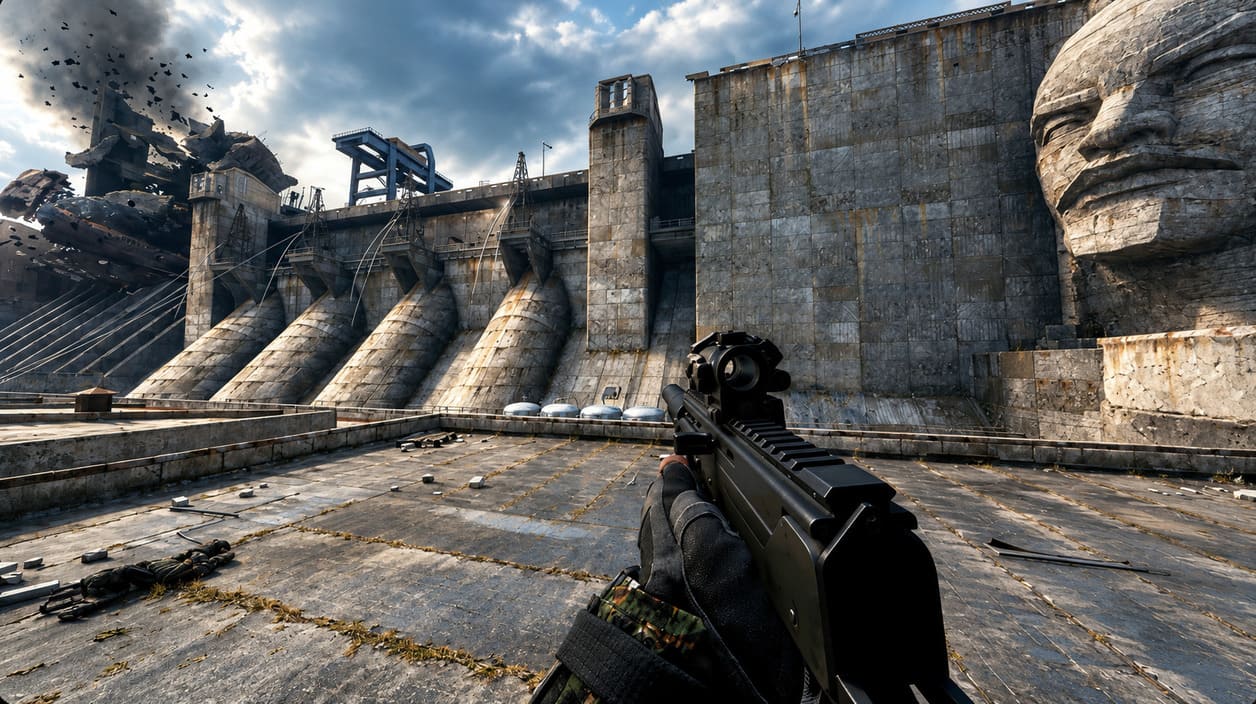
Step 5: Fix Your In-Game Settings
- Display Mode: Exclusive Fullscreen. Borderless Windowed keeps the desktop compositor alive in the background and eats hundreds of megabytes of VRAM.
- Resolution: On a 1440p monitor the 1080 will suffer. Drop to 1920×1080, or set Resolution Scale to 90%.
- Anti-Aliasing and FSR: Use Performance or Balanced. If you get nasty stutters after a raid, toggle Anti-Aliasing off and on in the menu to force the renderer to dump its runtime texture cache.
Cheat Sheet: What Each Tweak Does
| Setting | Game Default (Low) | Target | Payoff |
|---|---|---|---|
| Texture Streaming Pool | Dynamic / Uncapped | Capped via INI (3500 MB) | Saves roughly 2.5 GB from overflowing |
| Display Mode | Borderless Windowed | Exclusive Fullscreen | Frees about 400 MB of background VRAM |
| Page File | Windows managed | Manual, 16-24 GB on SSD | Stops hard crashes on map loads |
| Shadow Map Resolution | 1024×1024 | 512×512 | Cuts core video memory use |
Final Verdict
Is it ridiculous that you need an INI file, a custom page file and a background memory cleaner to play a 2026 release on a card that’s still very capable? Yes. Gaijin and Matter Team should patch that leak, and I’ll keep yelling about it until they do. But the fixes above work. Cap the texture pool, give Windows a big SSD spillway, clean your drivers, flush the leak and run Exclusive Fullscreen, and your 1080 can hold up in the quantum-unstable zones without kicking you to the desktop mid-raid.
Go load in, grab that loot, and extract with it this time.